-
Docker安装-linux篇
参考自 官方文档。
本机为Ubuntu 22.04LTS。
安装Docker Desktop
Docker Desktop包括:Docker Engine,Docker CLI client,Docker Compose,Docker Content Trust,Kubernetes,Credential Helper。
如果只需要安装Docker Engine可以跳过这一步。
这里和顺带一提,Docker Desktop在linux也运行虚拟机,确保提供跨平台的一致体验。用户想要 Docker Desktop for Linux (DD4L) 最常被引用的原因是为了确保在所有主要操作系统中具有一致的 Docker Desktop 体验和功能对等。使用 VM 可确保 Linux 用户的 Docker 桌面体验与 Windows 和 macOS 的体验非常接近。首先要完全清除旧版本以及配置,包括
docker-desktop和docker.cli。sudo apt remove docker-desktop rm -r $HOME/.docker/desktop sudo rm /usr/local/bin/com.docker.cli sudo apt purge docker-desktop如果未安装
gnome桌面环境,提前安装gnome-terminal,执行以下命令。sudo apt install gnome-terminal接下来设置
apt repositorysudo apt-get update sudo apt-get install \ ca-certificates \ curl \ gnupg \ lsb-release sudo mkdir -p /etc/apt/keyrings curl -fsSL https://download.docker.com/linux/ubuntu/gpg | sudo gpg --dearmor -o /etc/apt/keyrings/docker.gp echo \ "deb [arch=$(dpkg --print-architecture) signed-by=/etc/apt/keyrings/docker.gpg] https://download.docker.com/linux/ubuntu \ $(lsb_release -cs) stable" | sudo tee /etc/apt/sources.list.d/docker.list > /dev/null并下载最新DEB包,链接在这。下载完成后在下载目录执行以下命令。
sudo apt-get update
sudo apt-get install ./docker-desktop-<version>-<arch>.deb
在菜单中出现
Docker Desktop,安装完成!
Docker Engine
安装
Docker Engine比起以上简单些许,官方为我们提供了安装脚本。首先打开
Docker Engine安装文档,选择当前对应的安装环境,这里用Ubuntu演示。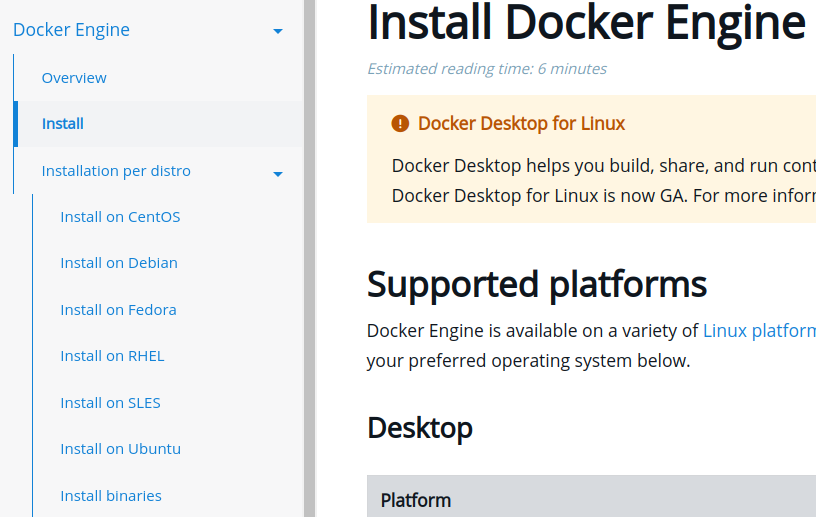
移除旧版本
sudo apt-get remove docker docker-engine docker.io containerd runc下载脚本到当前目录,并且执行。
curl -fsSL https://get.docker.com -o get-docker.sh
DRY_RUN=1 sh ./get-docker.sh
安装完成!接着是收尾工作。
非root权限用户如要获取访问Docker的权限,做接下来的步骤。
创建docker group。sudo groupadd docker将用户添加到组。
sudo usermod -aG docker $USER要使其生效,需要
重启电脑,或者是完全注销当前用户,还可以运行以下命令激活对组的修改。newgrp docker如果在将用户添加到
docker组之前最初使用sudo运行Docker CLI命令,可能会看到以下错误,这表明~/.docker/目录是由于sudo命令而使用不正确的权限创建的。需要修复。sudo chown "$USER":"$USER" /home/"$USER"/.docker -R sudo chmod g+rwx "$HOME/.docker" -R之后试着运行以下命令吧!
ryokutya@ice-tea:~$ docker run hello-world
Unable to find image 'hello-world:latest' locally
latest: Pulling from library/hello-world
2db29710123e: Pull complete
Digest: sha256:7d246653d0511db2a6b2e0436cfd0e52ac8c066000264b3ce63331ac66dca625
Status: Downloaded newer image for hello-world:latest

Hello from Docker!
This message shows that your installation appears to be working correctly.

To generate this message, Docker took the following steps:
 1. The Docker client contacted the Docker daemon.
 2. The Docker daemon pulled the "hello-world" image from the Docker Hub.
    (amd64)
 3. The Docker daemon created a new container from that image which runs the
    executable that produces the output you are currently reading.
 4. The Docker daemon streamed that output to the Docker client, which sent it
    to your terminal.

To try something more ambitious, you can run an Ubuntu container with:
 $ docker run -it ubuntu bash

Share images, automate workflows, and more with a free Docker ID:
 https://hub.docker.com/

For more examples and ideas, visit:
 https://docs.docker.com/get-started/
至此,简单安装及配置已完成!
另外,要使
Docker开机自启动,将其作为守护进程开启。sudo systemctl enable docker.service sudo systemctl enable containerd.service